

Setup Walkthrough
How GOVO2 works.
Three steps to get GOVO2 running before your first ramp. iPhone, Apple Watch or a supported Garmin watch, and a Bluetooth power source - the rest is automatic.
Launch
Open GOVO2
on your iPhone.
Tap the icon. GOVO2 launches into the home screen and immediately starts a Bluetooth LE scan. On Apple Watch setups, it also opens a Watch Connectivity session in the background before you've touched another control.
iPhone running iOS 17 or later.
Bluetooth and the needed watch or health permissions granted on first launch.
App stays foreground during the test.

Broadcast
Start the watch.
On Apple Watch, open GOVO2 on the watch and tap Start heart rate. The watch begins streaming HR over Watch Connectivity to your iPhone, time-aligned with the incoming power stream. The Start ramp button on iPhone goes live the moment HR arrives.
Wear the watch tight. Loose strap = noisy HR.
Watch stays on-wrist for the full test.
On Garmin, the watch just needs to be in broadcast mode.
Apple Watch is shown here. Supported Garmin watch setups follow the same order: start HR from the watch, then begin the ramp on iPhone.
Streaming HR - iPhone
Pair
Your meter connects itself.
The first compatible Bluetooth power source GOVO2 finds is auto-bound for the session - Quarq, Stages, Favero, a smart trainer, anything broadcasting the standard cycling power profile. It appears under Devices with a Live tag. Nothing to tap.
Just turn on the meter (pedal once if it's motion-activated).
Bound for this session only - swap from Devices anytime.
Watch is already live at this point, so you're ready to start the ramp.
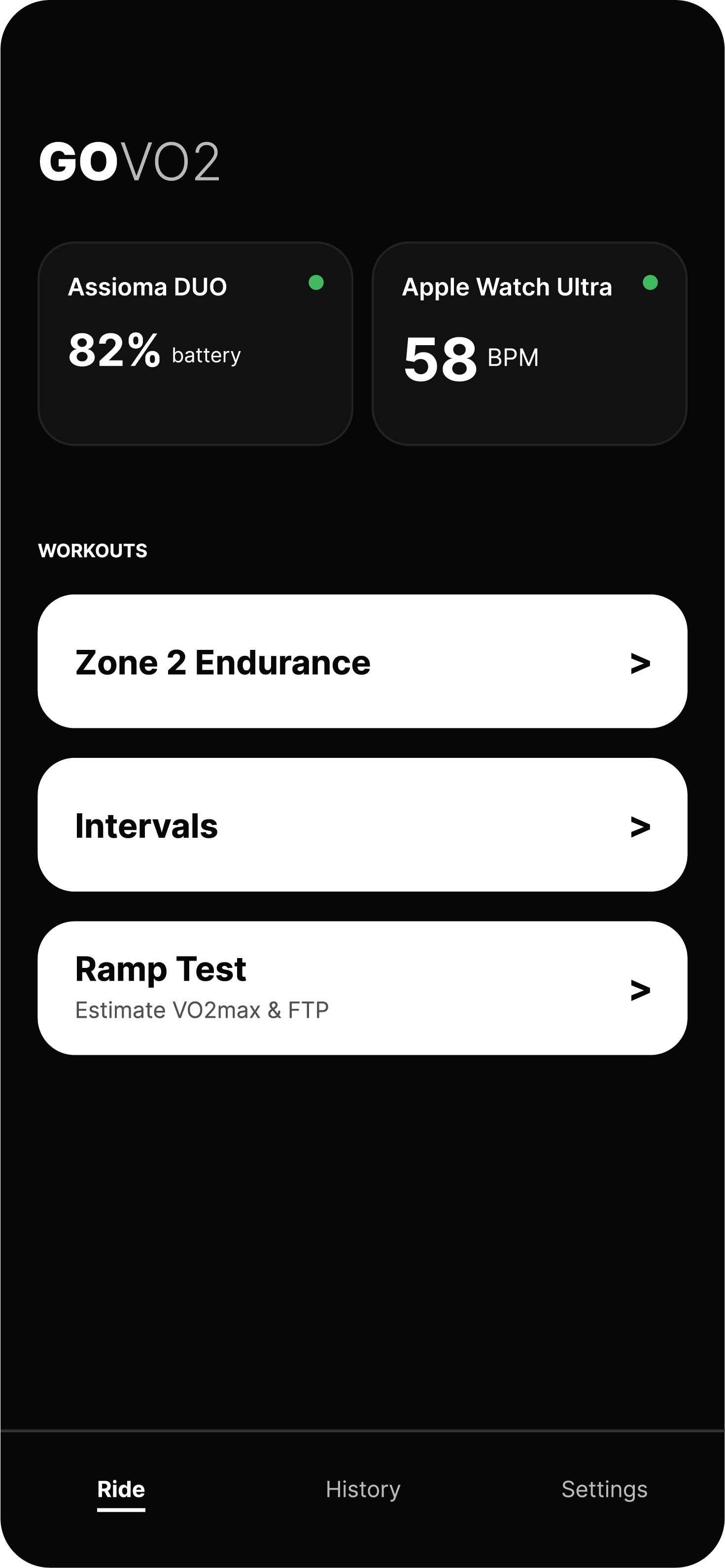
Set up. Now ride.
Three steps.
Two minutes.
Once HR streams in from the watch, the Start ramp button on iPhone activates and the structured protocol takes over. The hardest part is done before you turn the cranks.
@govo2app - govo2.app